Wednesday, November 10, 2010

Cool New Feature in OBIEE 11g: Master-Detail Linking

A few weeks ago, I was fortunate enough to attend an OBIEE 11g workshop given by Oracle. There were so many cool, new features to be found in this new release of OBI, but one of them that seemed really slick was called Master-Detail Linking.

In a nutshell, you can create an analysis (report) with multiple different views and have the views dynamically change as you click on values from another view. Here’s an example of how to accomplish this:

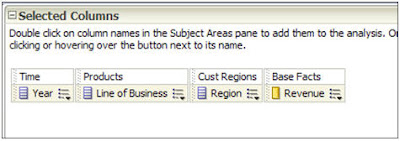
1. Create a new Analysis and add some columns of interest:


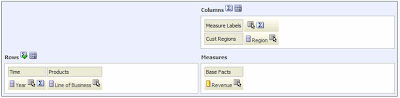
2. View the results and add a pivot table view. Edit the pivot table by moving Region to Columns, and add a Grand Total to the Rows:

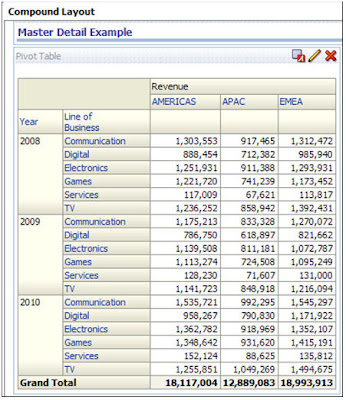
3. Now, my compound layout looks like this:

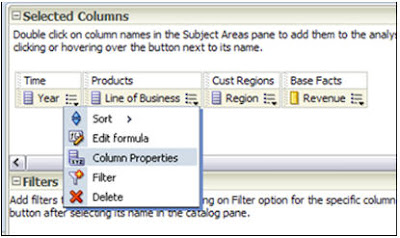
4. Go to the criteria tab, and select the properties of one of your dimensions. I’ll choose Year:

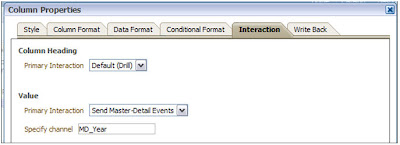
5. Go to the Interaction tab, and under Primary Interaction, select ‘Send Master-Detail Events’. Under Specify Channel, you must give it a name. It doesn’t matter what… just remember it for later. I like to use MD_ (for Master Detail) and then the column I’m using.

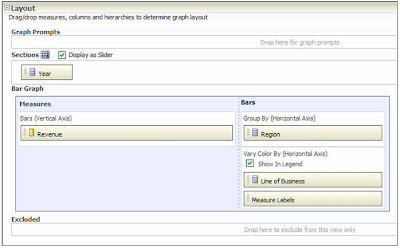
6. Go to the results tab, and add a vertical bar graph. Edit the graph by moving Year to Sections and check the ‘Display as Slider’ checkbox. To make my graph more interesting and easier to read, I’m going to move Line of Business down to ‘Vary by Color’.

7. Click on the graph properties icon:

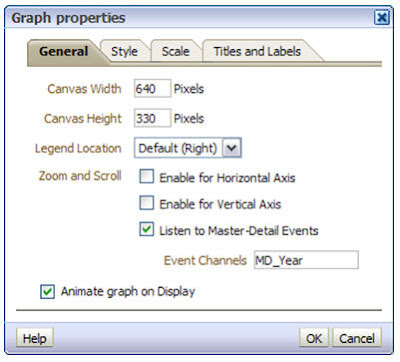
8. On the General tab, check the box labeled ‘Listen to Master-Detail Events’. Be sure type in the Event Channel that you created earlier.

9. Back at the Compound Layout, click the preview icon:


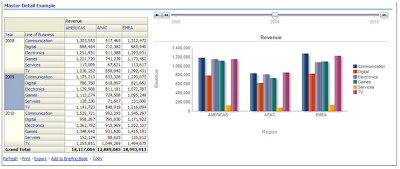
10. Click on the various years displayed in your pivot table. Your graph will dynamically refresh according to the year your clicked on the pivot table and a neat, animated fashion! Very cool!


11. Things to keep in mind: A map view can be the Master, but never the Detail. All other views can be either the Master or the Detail.

Tuesday, November 9, 2010

Dashboard Design Tips

When designing a set of dashboards, I like to include an “at-a-glance” or summary page as the first dashboard a user sees when they log on each day. This page should include a condensed version of the user’s key performance indicators as well as any generated alerts. Users should then have the option of drilling down or to additional detailed reporting. In order to encourage usage of the dashboards, embed your dashboards as a link within the corporate portal so users have one click access to the information

Consider the page placement of your key performing metrics based on web page eye movement. The diagram below shows how the human eye views a web page, based on level of priority. Place the most important elements for viewing in the upper left hand corner and the least important in the lower right corner to mimic the way the eye scans a page.

Some additional design guidelines are:

  • Ideally, the dashboard should fit on one page. Try to avoid any scrolling from left to right.
  • The best screen size for the dashboard window is 1024 x 768.

  • The ability to drill is critical to the success of your dashboards. Users need to know that the underlying data is going to be available to them. Some projects I’ve worked on have been very successful when allowing the users to drill not only to the detailed data but also back to the source transactional systems.
  • Introduce competition by using Top 10 reports, conditional formatting, etc.
  • Avoid decorative dashboard elements cluttering the screen like dials, gauges, excessive colors and images. Your dashboard can still be visually interesting while following standards.
  • Speaking of standards, it’s important that dashboard standards and best practices be defined early in the design process. This ensures consistency among various groups within your organization. I recently worked on a project where OBIEE had been in place for over a year, being used by a few departments. Additional teams were being brought on board and new development had already started. There were no design guidelines in place and the new dashboards were completely different among each of the teams. One of our exercises was to look at what was in production today and identify standards to be used in future development. This also caused a little rework on the production dashboards to meet the requirements of all teams, resulting in a consistent approach for the organization as a whole.

As a little bonus, I’ve included a few tips from Dashboard expert Stephen Few:

Characteristics of A Well-Designed Dashboard

  • Exceptionally Well Organized
  • Condensed, Primarily in the form or Summaries and Exceptions
  • Specific to and Customized for the Dashboard’s Audience and Objectives
  • Displayed Using Concise and Other Small Media that Communicates the Data and Its Messages in the Clearest and Most Direct Way Possible

Common Mistakes in Dashboard Design

  • Exceeding the Boundaries of a Single Screen
  • Supplying Inadequate Context for the Data
  • Displaying Excessive Detail or Precision
  • Arranging the Data Poorly
  • Highlighting Important Data Ineffectively or Not at All
  • Cluttering the Display with Useless Decoration
  • Misusing or Overusing Color
  • Designing an Unattractive Visual Display

Friday, November 5, 2010

Starting and Stopping BIEE from command line

BIEE11g uses now Weblogic as application server. This means we need to know some basic commands such as how to start and stop Weblogic server (WLS). In addition to this from the previous post we know that BIEE11g does not only require WLS but also other additional processes. All this plus the need to interact with these components by means of a script in a development / test environment led us to the conclusion that we need to know how we can start or stop BIEE (or even its processes) from a command line. So let us get in this:

Starting BIEE
:
  1. First, read and understand the BIEE11g architecture. This is discussed in a previous post (it can be found here).
  2. So now, you know we need to start / stop basically the Java and System components respectively:
    a. The Java Components:
    i. Admin Server
    ii. Managed Server
    b. System Components (OPMN Processes)
    i. BI Server
    ii. BI Presentation Services
    iii. BI Java Host
    iv. BI Cluster Controller
    v. BI Scheduler
Fortunately we do not need to create scripts for each of the components from scratch since during BIEE11g installation some of them were already created for us. We will make use of some of them: ( Note: In our examples our Fusion Middleware home is C:\fusionMW )

1. Start NodeManager:
This process starts automatically in Windows as a service (everytime the OS is restarted). Additional reference for this component can be found here

2. Start Admin Server:
Command: startWeblogic.cmd
Path: C:\fusionMW\user_projects\domains\bifoundation_domain\bin

You will be prompted for the admin user and password. You either enter these values everytime you start/stop the services or alternatively you can set these values in boot.properties file.

The WLS will have started when you see these messages:

OPTIONAL:
File Name:
boot.properties

Content:

username=
enter your user name here
password=enter your password here


For WLS place this file in:

C:\fusionMW\user_projects\domains\bifoundation_domain\servers\AdminServer\security

For Managed Server place this file in:

C:\fusionMW\user_projects\domains\bifoundation_domain\servers\bi_server1\security

The next time you restart WLS the password in the boot.properties will be encrypted.


3. Start Managed Server:
Instance: bi_server1
URL: http://hostname:7001
Command: startManagedWeblogic.cmd bi_server1 http://hostname:7001
Path: C:\fusionMW\user_projects\domains\bifoundation_domain\bin

The Managed Server will be up when you see the following lines:

4. Start All OPMN processes
Finally, you need to start all OPMN processes: BI Server, BI Presentation Services, BI Java Host, BI Cluster Controller, BI Scheduler.

Start OPMN services:
Command: opmnctl.cmd startall
Path: C:\fusionMW\instances\instance1\bin

Monitor Progress:
To monitor the progress of this task simply put the following command in a similar window (from the same directory):
Command: opmnctl.cmd status -l
Path: C:\fusionMW\instances\instance1\bin

Once all processes are "Alive" then you will get this screen:


Stopping BIEE
:
This process is almost the same but in reverse order. To stop all BIEE services you will have to perform the following commands in the respective order in the same directories where each of them started

1. Stop OPMN processes:
> opmnctl stopall

2. Stop Managed Server (bi_server1)
> stopManagedWeblogic.cmd bi_server1 t3://hostname:7001 username password

3. Stop WLS (Admin Server)
> stopWebLogic.sh username password t3://host.domain:7001

This is all you need to know about it to get started. If you already installed BIEE11g then you should be familiar with the Start/Stop BIEE services script that the installer produces. Well, that script uses a series of ANT commands to produce the same effect we have here described. In a future post I will explain about ANT and take such script as example.

Until next time


Friday, October 15, 2010

OBIEE 11g Architecture

In this article we will briefly explain the new OBIEE 11g architecture and its components. At first glance it seems complex to understand all the new pieces in OBIEE 11g, but let us take a look at the following picture:

We can identify two main component types the OBIEE 11g: The A) Java Components and the B) System Components.

A) Java Components: These are basically J2EE applications running in Weblogic Server. There are two subcomponents here: 1. Admin Server and 2. Managed Server. Each of them running in a dedicated Java virtual machine (JVM).
  1. Admin Server: This is nothing more than a set of J2EE applications that will help us Administering the system:
  • Admin Console (WLS) — An adminstrative user interface that provides advanced management for Weblogic, JEE components, and security
  • Fusion Middleware Control — An administrative user interface that is used to manage the BI domain.
  • JMX MBeans — Java components that provide programmatic access for managing a BI domain.
  1. Managed Server: These are J2EE applications which will help the functioning of the BIEE System (highlighted in RED):
  • BI Plugin — It routes HTTP and SOAP requests to BI Presentation Services.
  • BI Security — It enables the integration of BIEE Server and Fusion Middleware security platform through webservices calls.

  • BI Action Services — It provides the dedicated Web services that are required by the Action Framework (a nice introduction can be found here, another example of use is here and here) and that enable an administrator to manually configure which Web service directories can be browsed by users when they create actions.

  • Webservices SOA — This component provides Web services for objects in the BIEE Presentation Catalog, to invoke analysis, agents, and conditions.

  • BI Office — This component provides the integration between Oracle Business Intelligence and Microsoft Office products.

and finally
  • Two particular applications: BI Publisher (Reporting System) and RTD (technology platform which enable the analysis of data and provides insight by using data mining algorithms and techniques in real time).
B) System Components: These are non-J2EE components, such as processes and services written in C++ and java.
  • BI Server — It provides capabilities to query and access data as well as services for accessing and managing the RPD file (BIEE Metadata).

  • BI Presentation Services — It provides the framework and interface for the presentation of business intelligence data to Web clients. It maintains an Oracle BI Presentation Catalog service on the file system for the customization of this presentation framework.

  • BI Scheduler — Provides extensible scheduling for analyses to be delivered to users at specified times. (BI Publisher has its own scheduler.)

  • BI JavaHost — It enables BI Presentation Services to support various components: Java tasks for BI Scheduler, BI Publisher, and Graph generation.

  • BI Cluster Controller — It distributes requests to the BI Server, ensuring requests are evenly load-balanced across all BI Server process instances in the BI domain.

In addition, the BI Domain requires a set of configuration files, the repository (RPD) file, the Presentation Catalog files, etc. Likewise, BIEE System uses a set of metadata tables stored in a relational database like Oracle.

How to Start BIEE System: There are multiple ways to start the BIEE System, but it must follow certain order. Based on the description given above we need to :

1. Start NodeManager : By default in Windows it runs when the OS starts (Reference about NodeManager can be found here)
2. Start Admin Server : Initiate Weblogic Server.
3. Start Managed Server : Initiate the main applications. Based on the picture above, these are highlighted in Red : BI Plugin, BI Security, BI Action Service, BI Webservices SOA. If you are planning to use BI Publisher or RTD then it must also be started.
4. Start BIEE Services : These are the main BIEE processes which are controlled by OPMN: BI Server, BI Presentation Server, BI JavaHost. If you are planning to use BI Scheduler then also start it. Or if your instance is a clustered environment then also start the BI Cluster Controller.

In our next post, we will describe how to actually perform this operation and we will describe how to troubleshoot issues by looking at the log files.

References:
1. Introduction to BIEE Administration (here).
2. Rittman Mead posts on Action Services (here).

Wednesday, October 13, 2010

Report Return HTML

General:
When you navigate down to a third level report from a top level Report in OBIEE, when you hit the default return value on the dashboard it returns you to the first level report, and not the report that you navigated from. Also when you use the Go URL Command to integrate a Report into a web portal it will not have a return value to return you to a high level report, when you navigate from a top level report.

To solve the above issues you can incorporate HTML in a Static View on the request.

Purpose:
The purpose of this document is to show how to use the Static View on the OBIEE Request to add a return link for the report.

Steps:
1. Create the OBIEE Request
2. Add a Static View to the Request
3. Add the onclick HTML to the Static View
4. Add the Static View to the Request Compound View
5. Left justify the Static View
6. Save the request

HTML for a Return Link:

Return

Summary:
This document shows how to create a return link for the report that has been navigated to from a higher level report in OBIEE. This same techniques in also used to create a return link for a Report that has been added to a web portal, and has a navigation to a lower level report.

Testing Project Business Requirements

Discussion:
We usually think of testing during the Project Development Cycle. The first instance of testing is to do some unit testing during development to insure that the system does not break when a user logons on to the system and accesses screens to enter data. A second instance of testing is usually during User Acceptance Testing (UAT) to let the user logon to the system and test the functionally of the system. If testing is developed in the environment focused on testing the actual testing begin when the Project is first undertaken. One of the first documents in the testing cycle is to develop a Test Strategy Document. This document is normally developed by the Testing Team with the help of the other Project Team Members especially the business users. Once the document is completed it should be reviewed by all the team members, and agreed to by the Project Team. The next document is the detail test plan. This is normally developed during the Requirements and Design Phases of the Project Life Cycle, and details the detailed testing needs and requirements. The next documents that are completed during the Project Life Cycle are the Test Cases. The Test Cases detail are the scenarios that the users will encounter when using the system, and provides the user the capability to respond to whether the system processes meet the expected conditions.

Requirement Testing:
One of the most often missed steps during the Project Testing Cycle is to test the System Requirements. Once the Requirements Document is completed, the next step in the process it to test the documented requirement to insure that the meet the Business Users needs. This is usually a very difficult process because many Business Users may understand part of their business process, but do not have a detailed understanding of all phases of their business processes, and the data that supports their business processes. One of the main functions of the Information Technology Department is to work with the Business Users to help them understand the business processes and the data that supports their business processes. Usually Requirements Gathering Workshops are one of the best ways to develop the Project Requirements and help educate the Business Users about their business processes the that data that supports their business processes.

The Requirements Testing Phase is an excellent to give all members the opportunity gain an understanding of the Business Requirements, and to ask detailed questions about all phases of the Project Business Requirements. This is very critical because during the Project Design Stage the design should address all the Project Business Requirements. I have seen projects where the Project Design is not compatible with the Project Requirements Documents. This can only lead to project failure.

Some of the main questions that need to be asked during the Business Intelligence Requirements Testing Phase are:

1.) Do the metrics enable the business user to measure the efficiency and effectiveness of his business processes?
2.) Do the Dimensions provide the attributes that enable business user to provide the ways to view the metrics to measure their business processes?
3.) Is the proper security established to access to the Reports and Dashboards by the appropriate business users?
4.) Is the proper data security established to permit the business users access their data and not see other users secure data?
5.) Can we look at Charts and Graphs to view tends in data?
6.) Can we easily navigate through the BI Application without having to minimize the keystrokes and scrolling?
7.) Does the data provide the information to measure progress with the Business Users Goals and Objectives?
8.) Do the information, reports, and dashboards provide the needed information to help the business users better manage their business processes?
9.) Do the information, Reports and dashboards show out of bound conditions so that the business user can respond in a timely manner to correct the situation?
10.) Can the business users use the data to further analyze out of bound conditions or look at the data from a different perspective?

Summary:
Testing the Business Requirements is an important step of the Project Life Cycle. If the Business Requirements are thoroughly tested by all team members, it will lead to a more successful and rewarding development effort for the Project Team. By Testing the requirements early in the Project Life Cycle and getting agreement that they are correct, all the remaining Project Phases will be easier and lead to a better developed system that will meet the Business Users needs and Requirements.

Tuesday, October 5, 2010

OBIEE Go URL Command to access Reports and Dashboards from External Portals or Applications

General:
When using OBIEE at a Customer’s sites, as part of the requirement it may be necessary to integrate OBIEE Reports and Dashboards within other applications or portals. In one instance at a client site, the requirement was to integrate the OBIEE Repots, Dashboards, and Alerts into a Web Portal. The Portal was the main way for Line Manager to view their OBIEE Reports and Dashboards. Also another requirement was to distribute alerts from OBIEE Delivers to the Line Mangers email and let the Line Managers navigate to more detailed reports from the report delivered to their email. The alerts were based on a condition occurring in situation where the Line Manager needs to be notified. OBIEE Delivers enable an alert to be sent to specific uses based on a conditional report; however when the alert was received by the Line Manager he was unable to drill down to the more detailed reports. The way that the requirements were met was to use OBIEE Presentation Services Go URL Command.

Reference:
Chapter 11 of Oracle Business Intelligence Presentation Services Administration Guide, Version 10.1.3.2

Purpose:
The purpose of this document is to discuss the OBIEE Go URL Command and show how it can be used to incorporate Oracle Business Intelligence Results into External Portals using the Go URL Command. Also it will discuss how to permit navigation down to detailed reports from a report delivered to a Mangers’ email.

Snytax:
The starting syntax of the GO URL Command is:

http://server/analytics/saw.dll?GO

There are many other parameters and option that can be used in the GLO URL to access Reports and Dashboards. The following topics will show some of the parameters and filters that can be used with the GO URL Command. The parameters and filters are discussed in more detail in the referenced document.

Syntax for use in Portals:
Below is an example of the Go URL used in a web portal to access an OBIEE Report. The sections of the Go URL command are discussed below the example command.

https://server/analytics/saw.dll?GO&Path=/Shared/Expense/Expense%20Cost/Direct%20Reports%20Requestor%20Summary&ViewName=compoundView!1&Options=drf

https://server/analytics/saw.dll?GO – The standard GO URL syntax

&Path=/Shared/Expense/Expense%20Cost/Direct%20Reports%20Requestor%20Summary – The path to the OBIEE Presentation Server Report. Note that %20 is used in the statement where spaces are in the Presentation Server Path to the Report.

&ViewName=compoundView!1 – The view that is requested in the Go URL to be displayed in the portal. The View Name is found in the XML for the Report in the Advance Tab in OBIEE Answers. If there are different compound views needed for different reasons, multiple compound views can be made for the request. Only the one that is needed for the portal would be referenced in the Go URL Statement. Instead of using a compound view, any view in the request can be referenced in the Go URL command.

&Options=drf – A link option in the Go URL command that permits the following for the report in the portal: d – download to Excel, r – refresh results, f – printer friendly

Other optional parameters can be used in the Go URL command. Refer to the referenced document for a discussion of the optional parameters that can be used for the Go URL command.

Syntax for use in an email Alert Report:
Below is an example of a Go URL command that was used in an Alert to permit enable navigation to a lower level report. A discussion of each section of the Go URL Command will be discussed below the example.

'href=http://server/analytics/saw.dll?Go&Path=/Shared/Project%20Central/Expense%20Report%20Listing%20Person&Action=Navigate&P0=1&P1=eq&P2=Requestor."Requestor%20Name"&P3='|| Replace(Requestor."Requestor Name",' ','%20') || ' > '||Requestor."Requestor Name"||'

This Go URL command is placed in the column formula section of the column on the report that you want to navigate from. You also have to edit the column and make it a HTML format. The above href command must be enclosed in the HTML anchor syntax.


href=http://server/analytics/saw.dll?Go - The href statement for the Go URL command

&Path=/Shared/Project%20Central/Expense%20Report%20Listing%20Person – The path to the report in the OBIEE Presentation Server. Note the use of the %20 for the spaces in the OBIEE Presentation Server catalog path to the report.


&Action=Navigate – the action filter to tell that tell the Go URL Command that you want to navigate

&P0=1 – the number of columns that you want to filter

&P1=eq – the operation operator. The other potential operation operators are shown in the referenced document

&P2=Requestor."Requestor%20Name" – the requestor column in the report that you want to navigate to. This must be a filter with an “ is prompted” value.

|| - concatenation symbol

&P3='|| Replace(Requestor."Requestor Name",' ','%20') || ' – the name of the column on the report that you need to filter from. The Replace statement is needed because the Requestor Name has spaces in it in the database.

' > '||Requestor."Requestor Name"||' – the name of the column that should be displayed in the column on the Report that you want to navigate from.

Once you build the Go URL command you can test it in the Web Browser to check the syntax and insure that the Report will drill down to the detail report from the displayed report.

Other Options and Filters:
The referenced document discusses the optional parameters and filters that can be used the Go URL command. The Go URL command can access Dashboards as well as OBIEE Reports. Refer to the attached document for more information on the Go URL Command.

Summary:
The Go URL command is a good way to incorporate OBIEE Reports and Dashboards in into External Portals or other Applications. It can also be used to navigate down to detailed reports from Alerts sent to Managers by email. Going forward I anticipate that many other companies will want to incorporate OBIEE Reports and Dashboards into their existing Application instead of having to navigate and login to the OBIEE Application. Using the Go URL command is not difficult but you need to become familiar with the syntax, parameters, and filters to effectively use the command to meet your client or your requirements.